

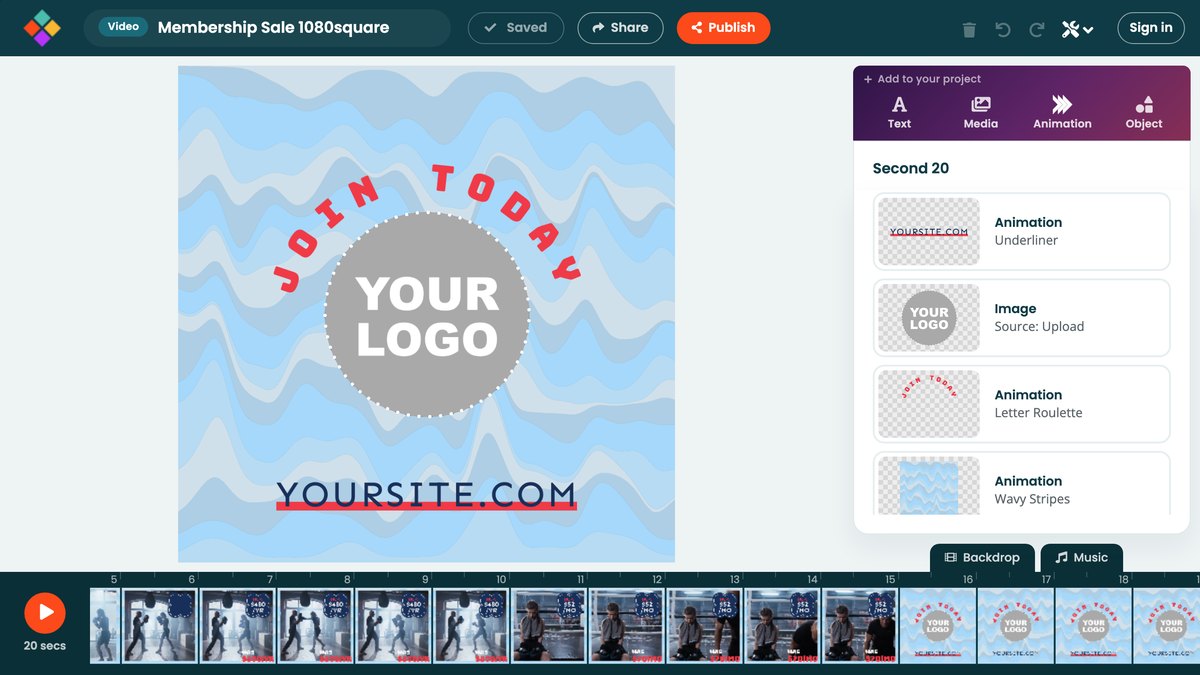
The editor has four parts: the Add row and object panel down the right side, the canvas in the middle, the top bar above it and the timeline along the bottom. Each one has its own section below.
Adding things
Everything you add starts in the Add to your project row above the panel on the right:
- Text adds a caption. See Adding and styling text.
- Media opens stock photos and video clips and your own uploads, on Photos and Videos tabs. See Images and Video clips.
- Animation adds animated graphics, from confetti to carousels. See Animations.
- Object opens shapes and icons, on Shapes and Icons tabs. See Shapes and icons.
Under the panel are three tabs video only:
- Backdrop sets the background color and background clips. See The backdrop.
- Music sets the soundtrack. See Music.
- Voiceover adds spoken narration. See Adding a voiceover.
A new object starts at the second you're on, and runs for a few seconds from there. That's only the starting point: Enter on second and Exit after second in the panel set when it appears and disappears, so you can place it anywhere in the video afterwards. See Timing, effects and the timeline. video only
The top bar
- The project's name is on the left, next to the size it was made at. Click the name to rename the project.
- Save keeps your work, Share sends an editable link to the project, and Publish turns it into a video video only. Save reads Saved when there is nothing left to save.
- On the right: Trash, Undo and Redo delete the selected objects and step back and forward through your changes.
- Tools (the wrench) has Help, Cut, Copy, Paste, Select all, and tools such as Swap colors, Trim content and Resize. See The Tools menu.
- Your profile menu links to New project, Projects, Videos and Account.
The canvas
The canvas in the middle shows your video at the selected second. Click an object there to select it and see its settings. See Working on the canvas.
The object panel
The panel on the right is titled with the selected second, for example Second 2. With nothing selected, it lists every object on screen at that second, with the Backdrop last. Click an object in the list, or on the canvas, and the panel shows that object's settings: its content, colors, position and size, and when it enters and exits. The ‹ arrow returns to the list.
The timeline and play button video only
Along the bottom, the timeline shows one thumbnail per second. Click a thumbnail to jump to that second. The badge next to the orange play button shows the length of your video, and the play button opens a preview. See Timing, effects and the timeline and Previewing your video.