

Open Music with the tab under the panel. video only
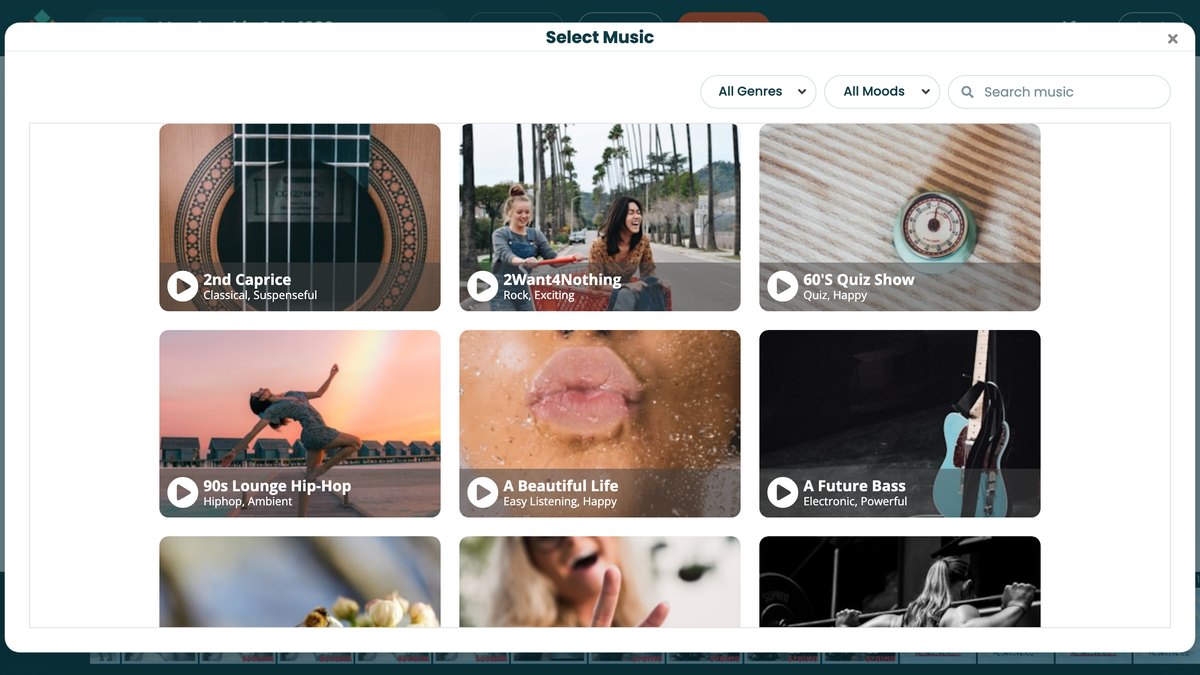
Choosing a track
Click Replace song to open Select Music, which has two tabs: Stock for the music library and Uploads for your own songs. On Stock, narrow the list with the All Genres and All Moods menus, or type in Search music. Each card shows the track's genre and mood: click the play button on a card to listen, and click the card itself to choose that track.
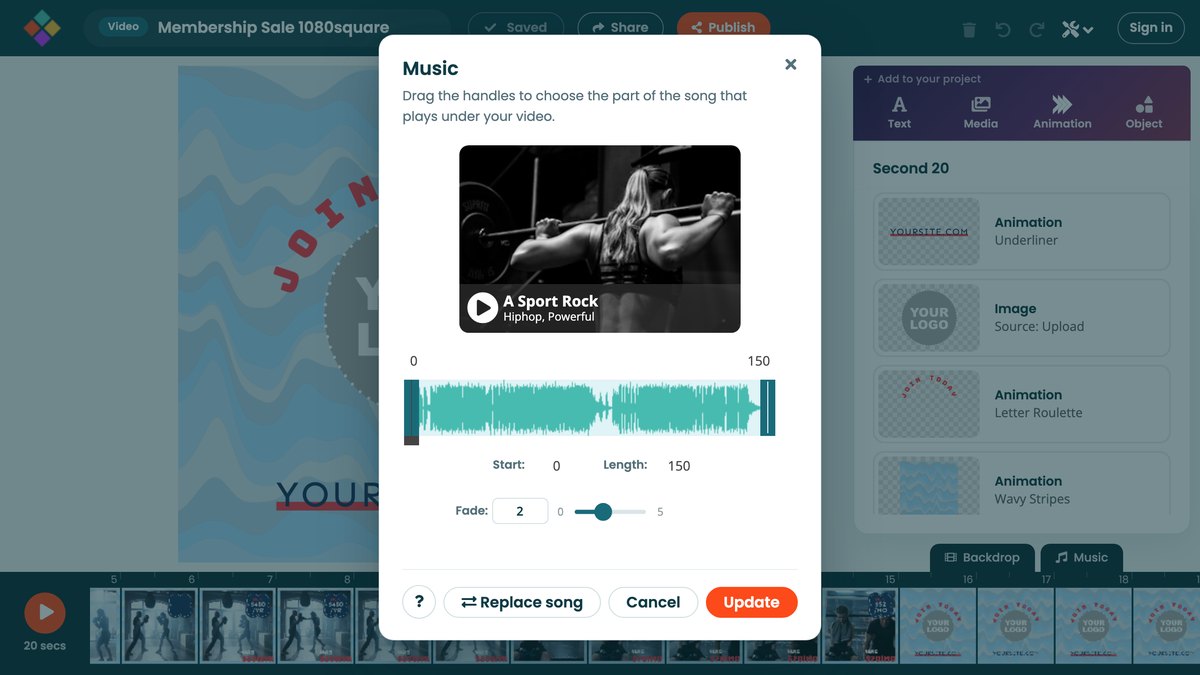
Which part plays
Back in the Music dialog, drag the handles on the waveform to choose the part of the song that plays under your video. Start and Length underneath show where it begins and how many seconds you've taken. Fade sets how many seconds the music takes to fade out at the end, up to five. Click Update to apply it.
Using your own music
On the Uploads tab, click Upload music and choose a song, or drag songs from your computer onto the tab. MP3, M4A and WAV all work, up to 60 MB a song. A song you upload is chosen straight away, ready to trim. Your songs stay in your account for your next video, and uploading needs a free account.
Each song gets a cover. Movidmo designs one from the song's title and waveform, or uses the artwork already inside the file. To use a photo instead, click Change cover (the picture button) on the card; the round arrow goes back to the designed cover. The × removes a song from your uploads, and videos that already use it keep playing it.
The music library is licensed for the videos you make with Movidmo. For songs you upload, make sure you have the right to use them.