

Video only. The image editor has nothing to preview: the canvas is already exactly what you'll download.
Click the orange play button at the bottom left of the editor, next to the badge showing how long your video is. Preview opens and plays your video from the start, with its music. The PREVIEW ribbon across the corner is part of the preview only — it isn't in the video you publish or download.
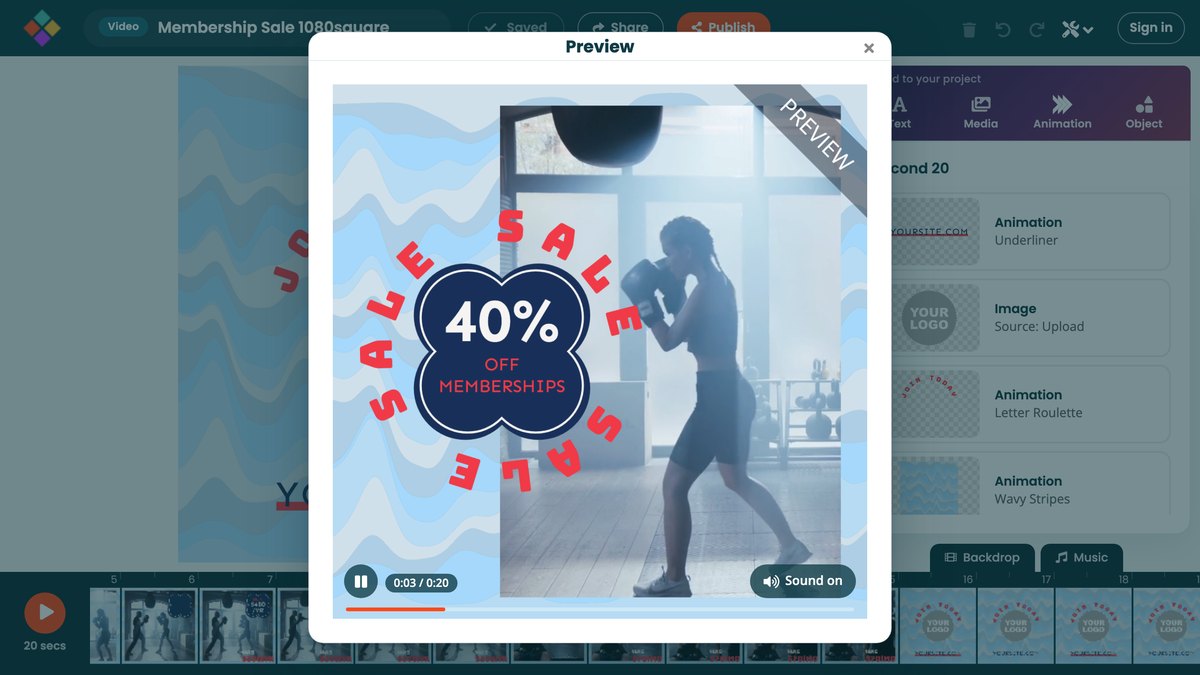
Move the pointer over the preview to show its controls:
- Play and pause.
- The time played, out of the video's length.
- The seek bar: drag it, or click anywhere along it, to jump to a moment.
- Sound on / Sound off mutes the preview.
Close the preview to keep editing.