

AI Image Maker Message with a beautiful graphic

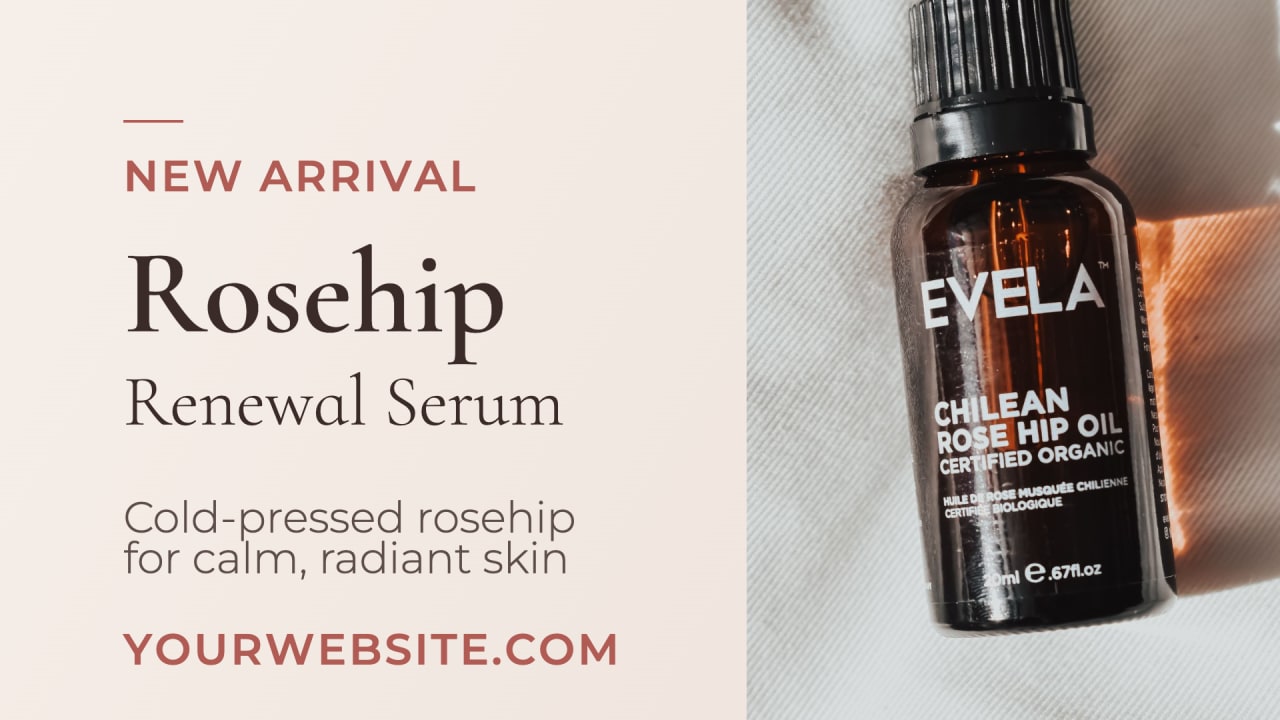
Not quite right? Change anything above and .
Looking for a video instead? Try the AI Video Maker.
How the AI Image Maker Works
What you get
A social image, ad, flyer, poster, invitation or announcement — sized for Instagram, Facebook, Pinterest, LinkedIn or a YouTube thumbnail.
- Formats
- Wide, square, vertical or portrait
- Imagery
- Real photography — found for you, or your own, never generated
- Type and color
- Fonts and a palette matched to the mood
- Delivered as
- An editable project, then a PNG or JPG
Movidmo does the design work. It composes the whole frame for the shape you pick:
- Uses real photographs, never generated
- Writes the words and sets them in type, from nearly 200 fonts
- Picks a palette from the mood you describe, and darkens the photo where words sit over it
- Composes the layout for the shape, rather than cropping to it
- Adds design objects where they earn a glance
Every one of those choices comes out of the same library the Movidmo template collection is built from — the same typefaces, the same design objects behind every Movidmo tool.
What comes back is an editable layout, not a picture of one. This is the difference that sets Movidmo apart, and it's easy to miss until you need it. A standard image generator hands back one flat picture: things like price, date and logo are baked into the same surface as the sky behind them. Ask it to fix a word and it paints the whole thing again — you may get the fix, and some other change you never asked for. Here, every piece stays separate. The date is text you can click and retype, and nothing else moves.
Don't like a photo? Change it, and the rest of the design stays put. You can add your own personal touches as well.
- Free to use
- No watermark
- Fully editable
Look around without signing in. You'll be asked once, the first time you press Make My Image, and signing up is free. After that, every graphic saves itself to your AI generations page with the words that made it — whether or not you remember to.
Make a free image →Describe it
A still gets one glance, so start by naming the one thing it has to get across — an offer, a date, an invitation, a listing. Five competing features will fight over the same space; a single clear message with a supporting line and a call to action will not.
Say how it should feel. Warm and elegant gets a different photograph, different type and different colors than energetic and bold.
And if something has to appear exactly — a website, a phone number, a price, a date — write it out in full. Whatever you type is what gets set in the design.
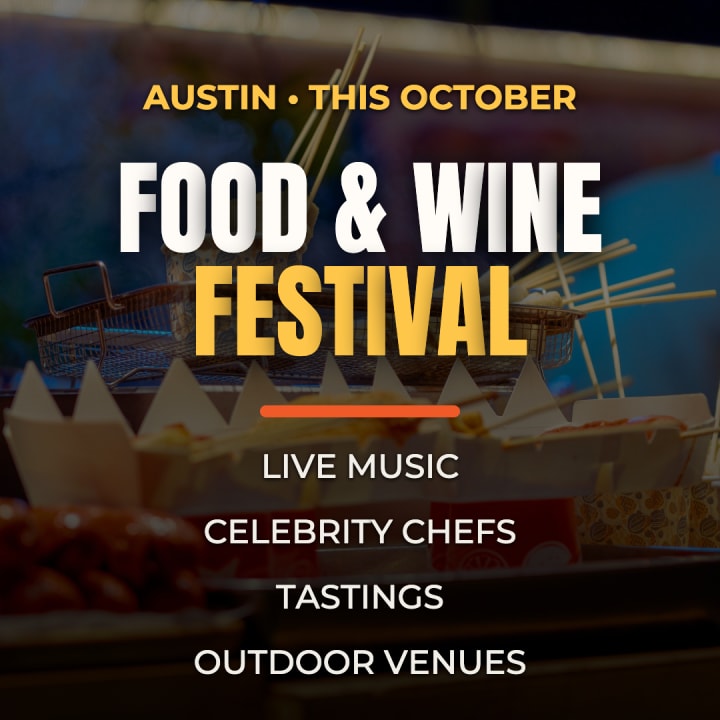
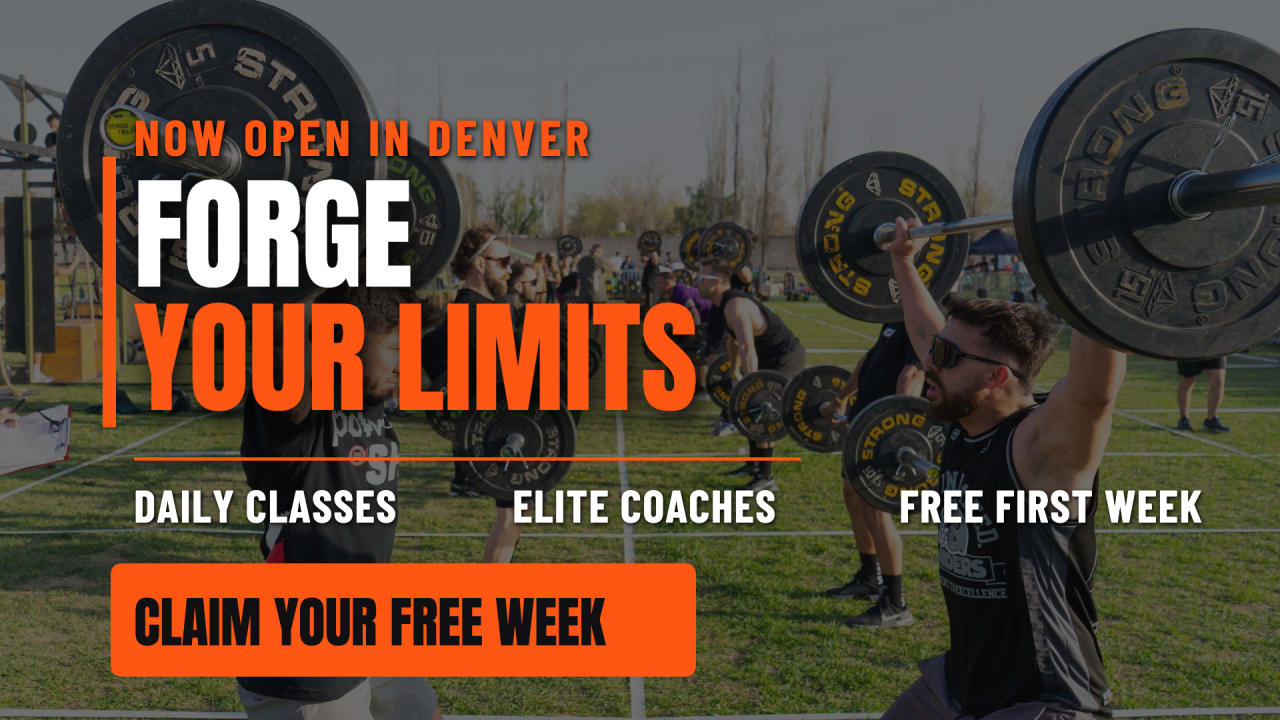
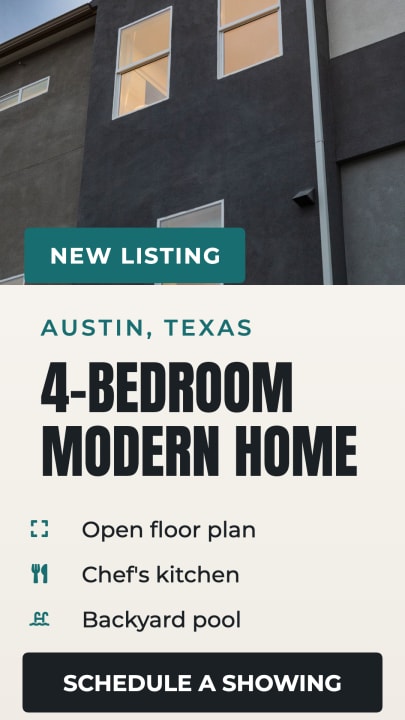
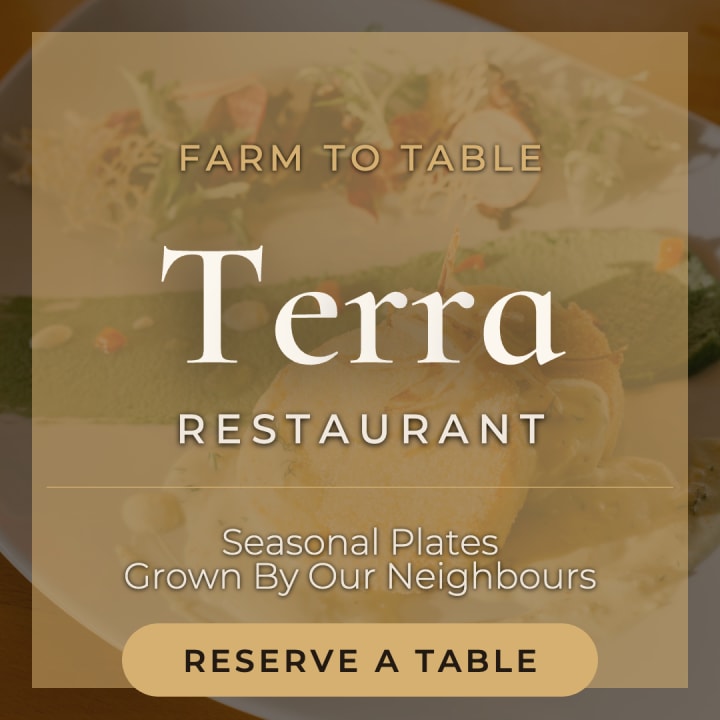
Every graphic at the top of this page came from one of the example descriptions below, in this order. Click one to drop it in the box and see what the maker does with it.
Pick the shape
Pick the shape you'll actually post in, before you generate. The frame is composed for it from the start: the same words laid out wide and laid out tall are two different designs, not one design trimmed to fit.
- Wide1920×1080
- The shape for anything that sits in a wide slot — a Facebook, X or LinkedIn post, a header on your own site, an email, or a YouTube thumbnail. It is also the only shape that fills a desktop browser without bars down the sides.
- Square1080×1080
- The safe one when you don't yet know where it will end up. A square post holds its shape in an Instagram or Facebook feed, works as an ad, and does not look wrong anywhere else. Pick it when the same image has to serve several places.
- Vertical1080×1920
- For Stories and Pinterest, where the image fills the whole phone screen. It tends to hold attention longer than the others. One thing to know: a Story lays its own buttons and captions over the top and bottom of the screen, so anything that has to be read is safer nearer the middle.
- Portrait1080×1350
- The tallest a feed post is allowed to be before Instagram and Facebook crop it, so it takes noticeably more of the screen than square while still being a feed post rather than a Story. Worth choosing over square whenever the image is going in a feed and nowhere else.
Choose the media yourself optional
The Media box under the description carries two buttons, side by side. Stock Media searches the same libraries the maker draws on, so you can pick the photograph yourself instead of leaving the choice to it. Your Media opens the photos you've already uploaded, and takes new ones. Either one opens a small panel below the button, and you can move between them freely and take some of each.
Add them one at a time; each lands in the box above as a thumbnail and the panel stays open for the next.
You can skip this entirely. Leave the media box empty and stock photography is found to match what you described — that's the normal way to work, and it's how the examples at the top of this page were made.
Worth doing whenever the picture is the point: the actual room, the actual product, the person whose name is on the door. A stock photograph of a generic version of your thing is the fastest way for a graphic to look like everyone else's. Nothing here is invented either way — stock or yours, someone took it of something real.
TipMost graphics are built on a single photograph, so a weak one is the whole graphic. Pick shots with room around the subject: every photo is cropped to fit where it lands, whether that is the whole frame or a panel inside it. And if your words end up over the photo, a quiet area gives them somewhere to sit. Add a few and the design picks what works.
Generate, then edit
Press Make My Image and the design is created for you. It usually takes under a minute, and your description stays on screen while it runs — so a tab you come back to still says what's coming.
When the process completes, the editor opens with your image loaded. You land in the place where everything is editable. Make small positioning and sizing tweaks, or take the design wherever you want: rewrite any line and restyle it — font, size, color, shadow; add your logo, or move and resize anything in the frame. Any photo can be replaced — upload your own, or pull from searchable libraries of millions of stock images built into the editor. The help center covers all of it.
Tip › Swap Colors gathers every color in the design into one short list — the type, the shapes, the background, the shadows. Change one swatch and everything using that color changes with it, so you can try a whole palette in seconds without touching the layout.
If a line sits slightly wrong or the photo isn't the one you would have chosen, changing it here takes seconds. Generating again gives you a different design rather than a corrected one. Small things are worth fixing; they're rarely worth a second run.
When the image is how you want it, the download button saves a finished PNG or JPG with no watermark — ready to post anywhere.
Everything you make is stored
Every graphic the maker designs for you is kept on your AI generations page, newest first, with the description that produced it. You don't have to save anything for that to happen. Press Open in editor on any one and it loads back into the image editor exactly as it was designed. Or press Use this description to bring the words, the shape and the photos you picked back into the box here, ready to run again.
Saving is separate. Press Save in the editor and it also becomes a project in Your projects, alongside everything else you've made — and it stays on the generations page either way.
Common Questions
How is this different from other AI image generators?
Does this generate images from scratch?
Does the text come out spelled correctly?
Can I use my own photos and logo?
Is it free?
Do I need an account?
Can I use the images commercially?
What sizes can it make?
- Wide 1920×1080 Facebook, X, LinkedIn and YouTube thumbnails.
- Square 1080×1080 Instagram and Facebook feeds.
- Vertical 1080×1920 Stories and Pinterest.
- Portrait 1080×1350 Instagram and Facebook posts.
Can I open the AI Image Maker from a link with the brief ready?
?q= carries the description, words joined with + and under 300 characters, and &format= sets the shape (square, portrait, wide or vertical): https://www.movidmo.com/ai-image-generator/?q=instagram+post+for+a+bakery+fall+sale&format=square. Opening the link only fills in the form; nothing is designed until you press Make My Image, so you can adjust it first. That makes it handy for saved briefs, for passing a request to a teammate, or for an AI assistant sending you here with your request in place. See the help center for more.Wanted something that moves instead?
The AI Video Maker takes the same kind of description and builds a short video from real footage and photography, with matching music and your words on screen — sized for the same places, and editable afterwards in the same way.