

Scenes are animated backgrounds built from Movidmo's own animations, layered and timed so they look designed the moment they land in your project. There are more than a hundred, from soft gradients, waves and fog to peaks, skylines, fairy lights and fireworks. You get the look of a composed background without building it yourself, piece by piece, which is the hard part of design for most of us.
Click Scene in the Add to your project row above the panel to open the chooser, and hover over any card to see it move.
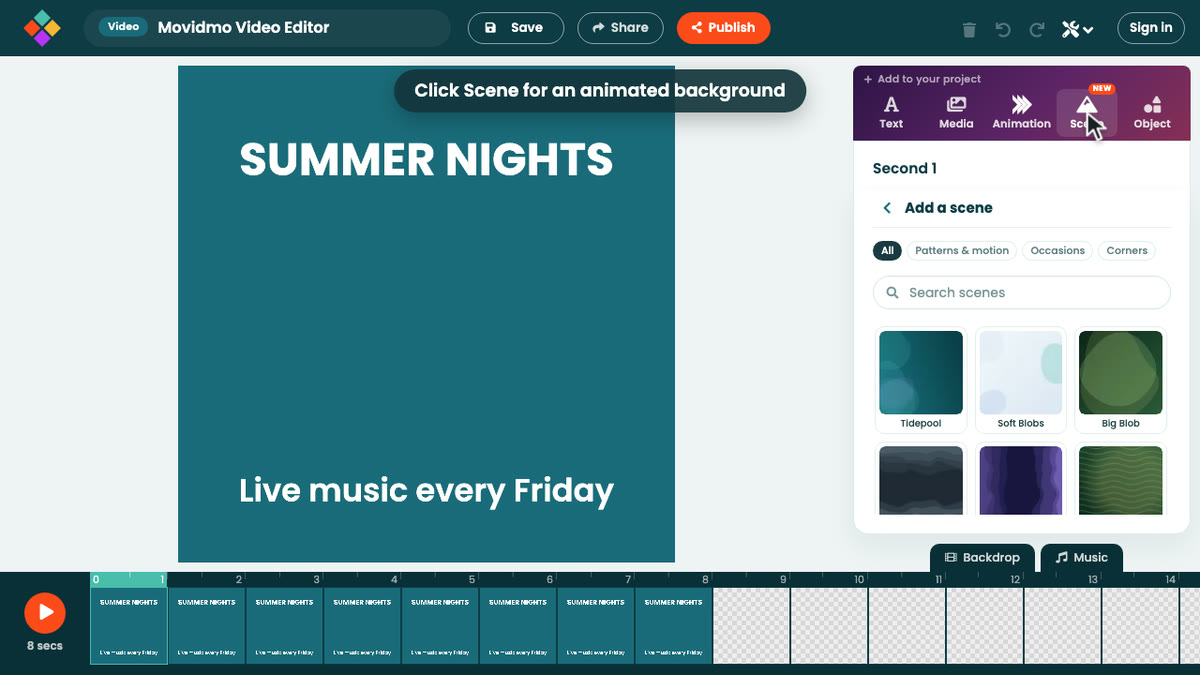
- Patterns & motion: the everyday scenes — blobs, ridges, rays, stripes, particles, grids and textures.
- Occasions: seasons and celebrations, like Snowfall, Fairy Lights, Fireworks and Spooky Garden.
- Corners: scenes that keep the middle clear and put their shapes in the corners you choose.
Use the search box to find a scene by name, and the chips to narrow the list. On a phone, press and hold a card to play it.
A scene's settings
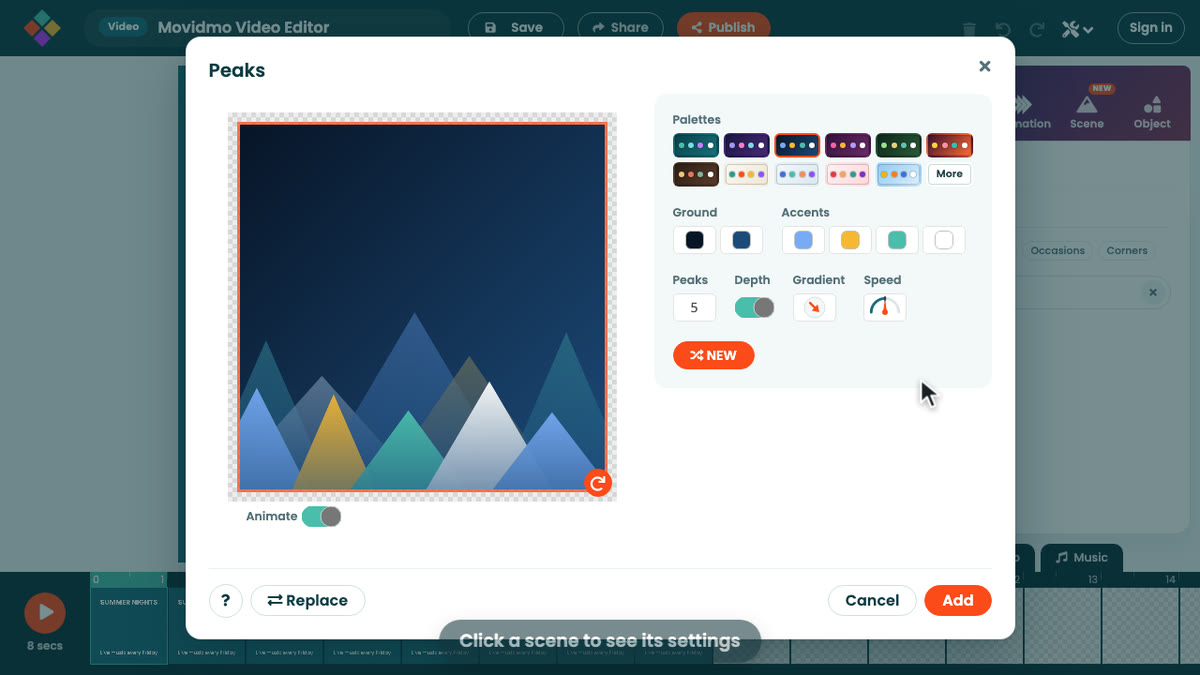
Choosing a scene opens its settings next to a live preview. Palettes recolors the whole scene at once; Ground and Accents set the individual colors. Many scenes have a control of their own, like the number of peaks or the size of the shapes, and an extra you can switch off, like a scene's stars or glow. Scenes that deal their shapes at random have a NEW button that deals them again. Speed sets how fast the scene moves, and Gradient sets which way its ground runs.
Click Add and the scene goes behind everything on that second and runs to the end of your video. Replace at the bottom of the dialog swaps it for another scene while keeping your colors.
Keeping text readable
Some scenes are bold by design, and text placed over their shapes can be hard to read. The scene's panel has a Mask color: pick one and the scene dims behind your text. The color picker's first group, Suggested for this scene, offers the scene's own ground color at three strengths, so one click keeps the scene's character while the text stands out. A caption's shadow helps too.
Once it's added, the scene's panel has an Edit … Settings button that reopens the same dialog. A scene sits on the Background layer; move it to Foreground and it washes over everything beneath it instead.