

Click Object in the Add to your project row. The picker has two tabs: Shapes and Icons.
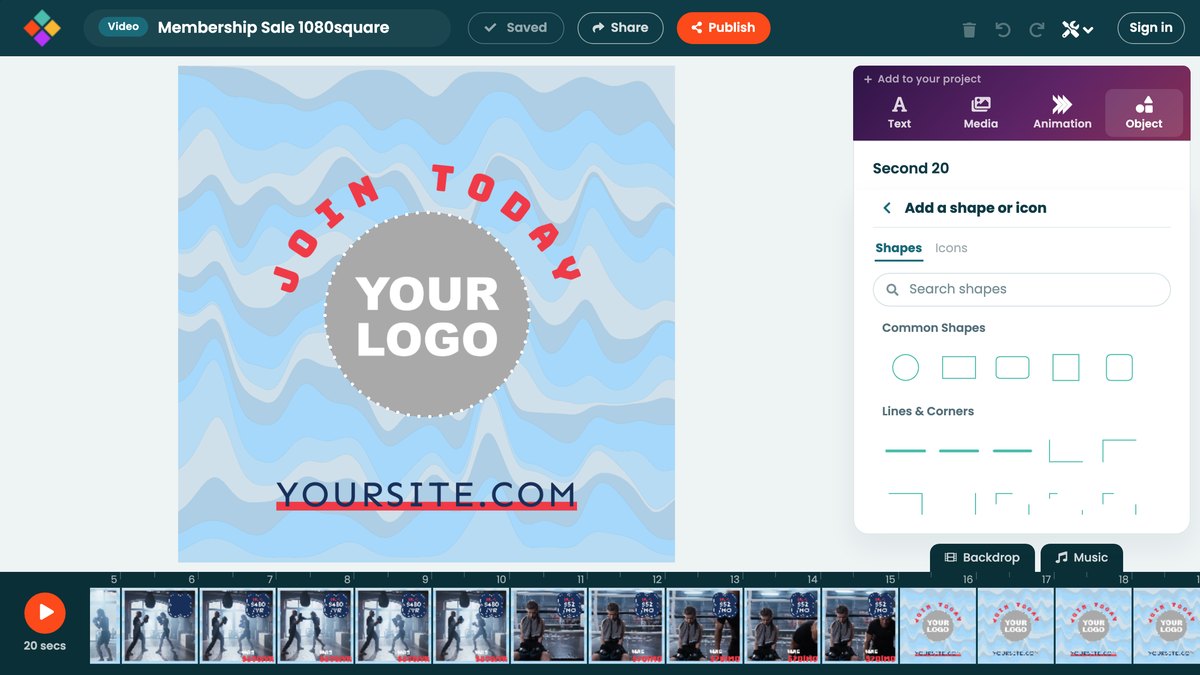
Shapes
Shapes are grouped: common shapes, lines and corners, circles, triangles, arrows, pointers, polygons, stars, waves, blobs, zigzags, grids, dots, speech bubbles, rounded rectangles, laptop and phone screens, and more. Click one to add it.
Icons
Switch to the Icons tab and search for what you need, for example "heart", "phone" or "star". Click an icon to add it.
Settings
- Fill is the color inside a shape. Choose transparent for an outline only.
- Stroke is a shape's outline, with its own color and width.
- An icon uses Icon for its color and Frame for a colored box behind it.
- Shadow adds a shadow to either, with a color of its own.
- Replace swaps it for another shape or icon, keeping its place and timing.
- Position and size places it exactly, and Layer puts it in front of or behind everything else.
To put a photo inside a shape, add the photo and choose the shape under Crop. See Images.